 Live Ambience
 Administrator manual
My account is the web dashboard where you manage all of Live Ambience: your locations, their USB sticks, the messages that play over the music, the images on the screens, the plan and your account security. It works in any browser, also on a phone.
Permitted use. Live Ambience is a tool to distribute your own music tracks to your stores: created by you and with your own copyright. Under no circumstances is it a way to get around copyright, and Live Ambience is not responsible for any misuse of the tool. The same applies to the messages and images you upload.
Signing in
- Open https://liveambience.com/login.
- Type your email and password. The eye icon on the right shows what you typed, so you don't make mistakes.
- We email you a 6-digit code. It expires in 10 minutes. If you don't see it, check spam.
- Type it and tap Confirm.
The code is a second security step: even if someone knows your password, they cannot sign in without access to your email. If you forgot it, tap Forgot my password and we send you a link to choose a new one (it expires in 1 hour).
The dashboard
The menu is on the left (on a phone it sits at the top and scrolls sideways). Each section fits on one screen, no scrolling:
- Home: your account summary.
- Locations: create them, USB sticks, audio output and city.
- Messages and services: time, weather and scheduled messages.
- Music: your own tracks, which play without internet.
- Screens: looping images for the stores' TVs.
- Plan and billing: purchased locations and billing.
- Security: password.
Below the menu are Open the Central and Sign out.
Home
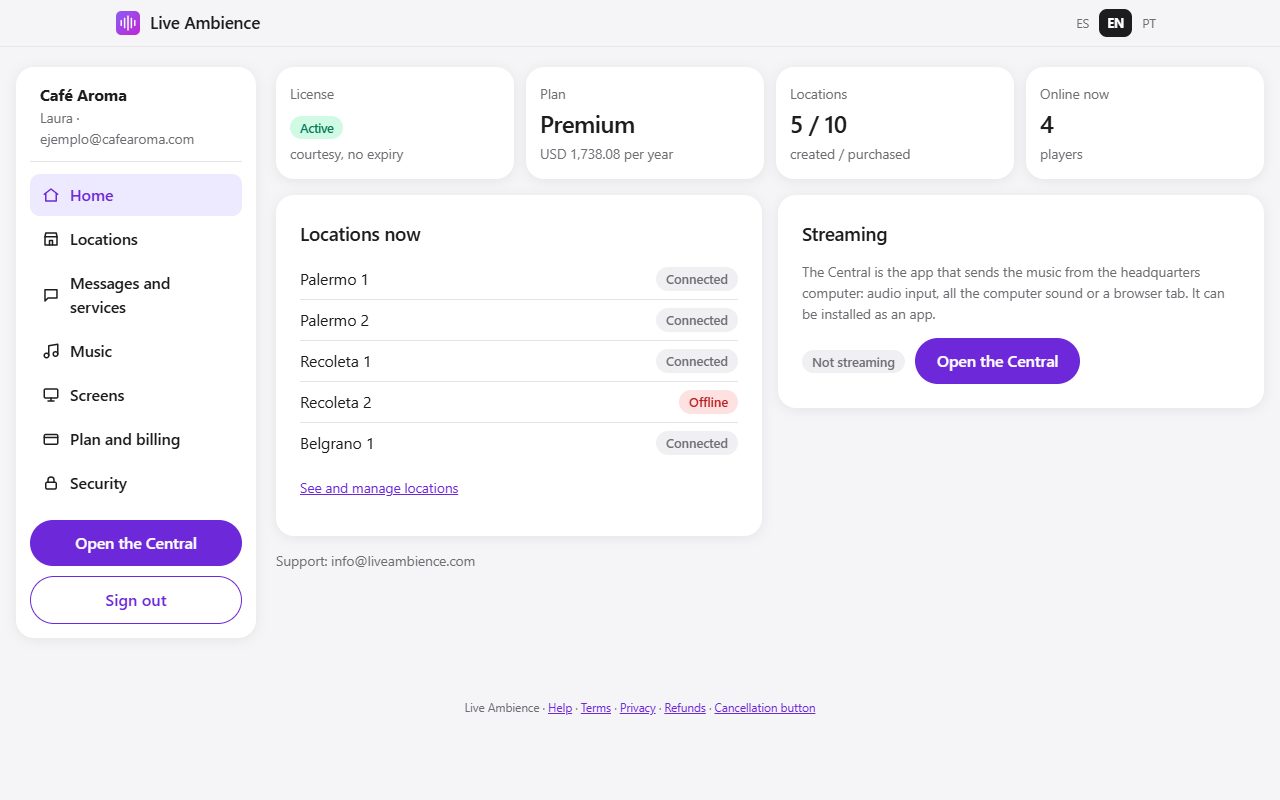
At the top you see four figures:
- License: Active, Payment pending (Paddle is retrying the charge; your stores keep playing) or Expired. Below, when it renews or until when it runs.
- Plan: Loop, Live or Premium, whether you pay monthly or yearly, and how much.
- Stores and screens: how many players you created and how many you purchased.
- Connected now: how many store computers are reporting right now.
Next to them are Streaming, which shows whether your account is on air, and First steps with what is missing while you set up your first location.
Locations
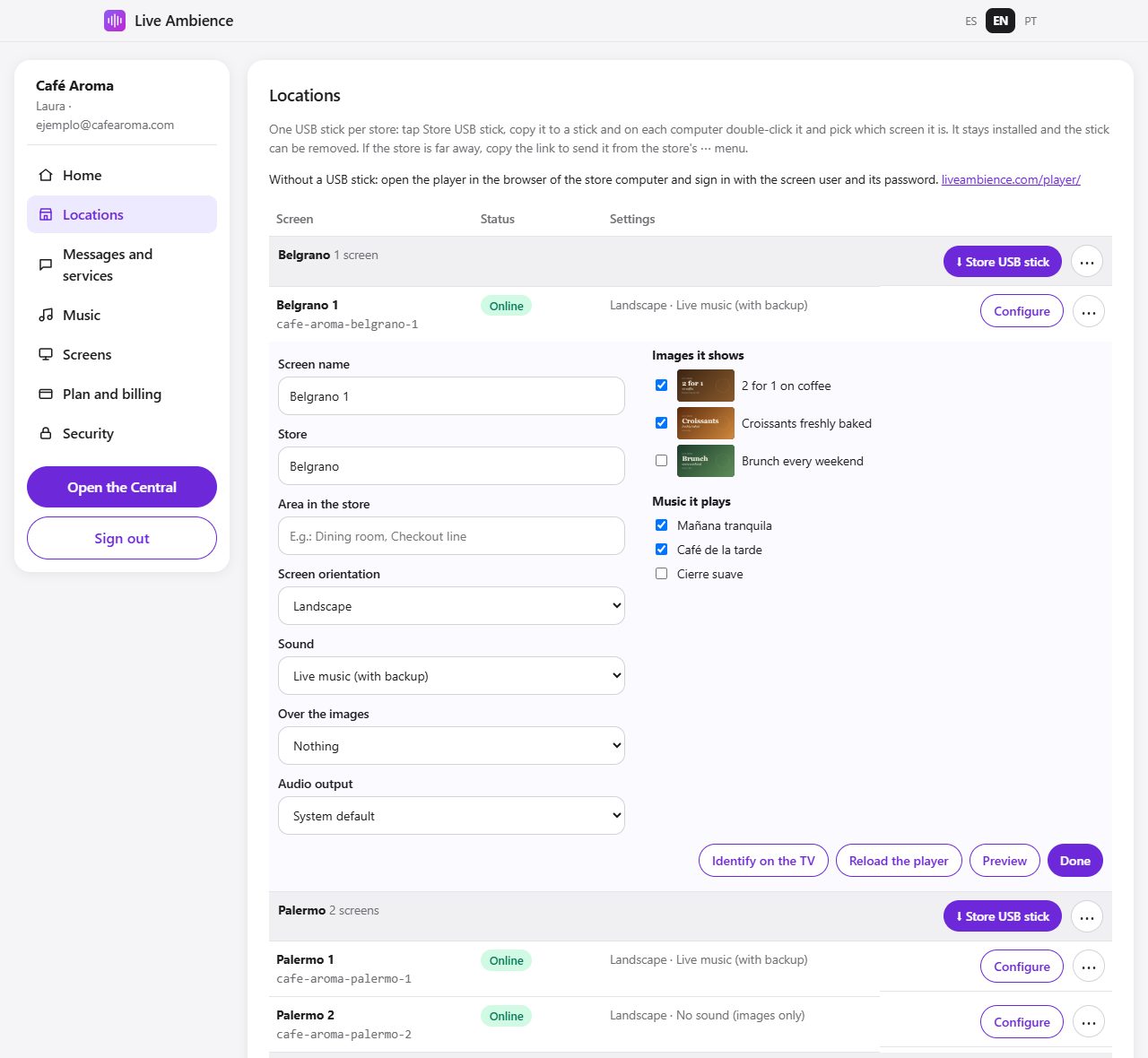
Each row is a screen (a player): a store computer connected to the sound system and, if you like, to a TV. Each screen has its own user, password and USB stick file. A store can have several (for example Downtown 1, Downtown 2 and Downtown 3), shown grouped by store.
Adding a screen
Type the Store (for example "Downtown") and the screen name, and tap Add screen. If you leave the name empty, it is created automatically ("Downtown 4"). We show its user and password only once. Each screen counts as one player of your plan.
Connecting the screen
- Store USB stick (in the store's row): one file to connect all its screens. On each computer you double-click and pick on the TV which screen it is. In its ⋯ menu: Copy link to send it (for a store far away, valid for 7 days), USB stick for Linux and Invalidate the store USB stick.
- In each screen's ⋯ menu: USB stick for this screen only, Open the player (to sign in from the browser with user and password) and Copy user.
Configure
The Configure button gathers everything about that screen, and every change is saved instantly:
- Name and Store.
- Orientation: landscape or portrait (if the TV is mounted vertically, the player rotates the picture by itself).
- Area in the store: for example "Dining room" or "Checkout line". When choosing which screens get an image, a message or a track, "All Dining room screens" ticks those screens in every store at once. live music (with backup), only your music list, or no sound (images only). From the second screen of a store on, a new screen starts with no sound: if two screens are close, they may play a few seconds apart (echo). One screen with sound per store is recommended.
- Over the images: nothing, the time, or the time and the weather of its city.
- Audio output: HDMI, speakers or USB card, once the computer has connected.
- Images it shows and Music it plays: check the ones that go to that screen.
- Identify on the TV: the TV shows the screen name, large, for 30 seconds. Useful to tell them apart when installing several in a store.
- Reload the player: restarts it remotely.
- Preview: opens that screen in a tab of your browser, without a password and without disconnecting the store.
Identify and Reload reach the screen within a minute.
Status
- Connected: the store computer reported in the last few minutes.
- Seen ... ago: when it last reported.
If a screen stays offline for more than 2 hours, we email you.
More options (⋯)
- New password: creates a new password. Use it if you lost the USB stick: the old one stops working and the computers connected with it are disconnected. Then download a new USB stick.
- Delete: deletes the screen; it stops playing and frees a slot of your plan. Anything that went only to that screen is paused.
Each location's city
Type the city and tap Change. It is used for the weather and for the local time: messages and schedules follow each store's clock. If you don't choose one, Buenos Aires is used.
Messages and services
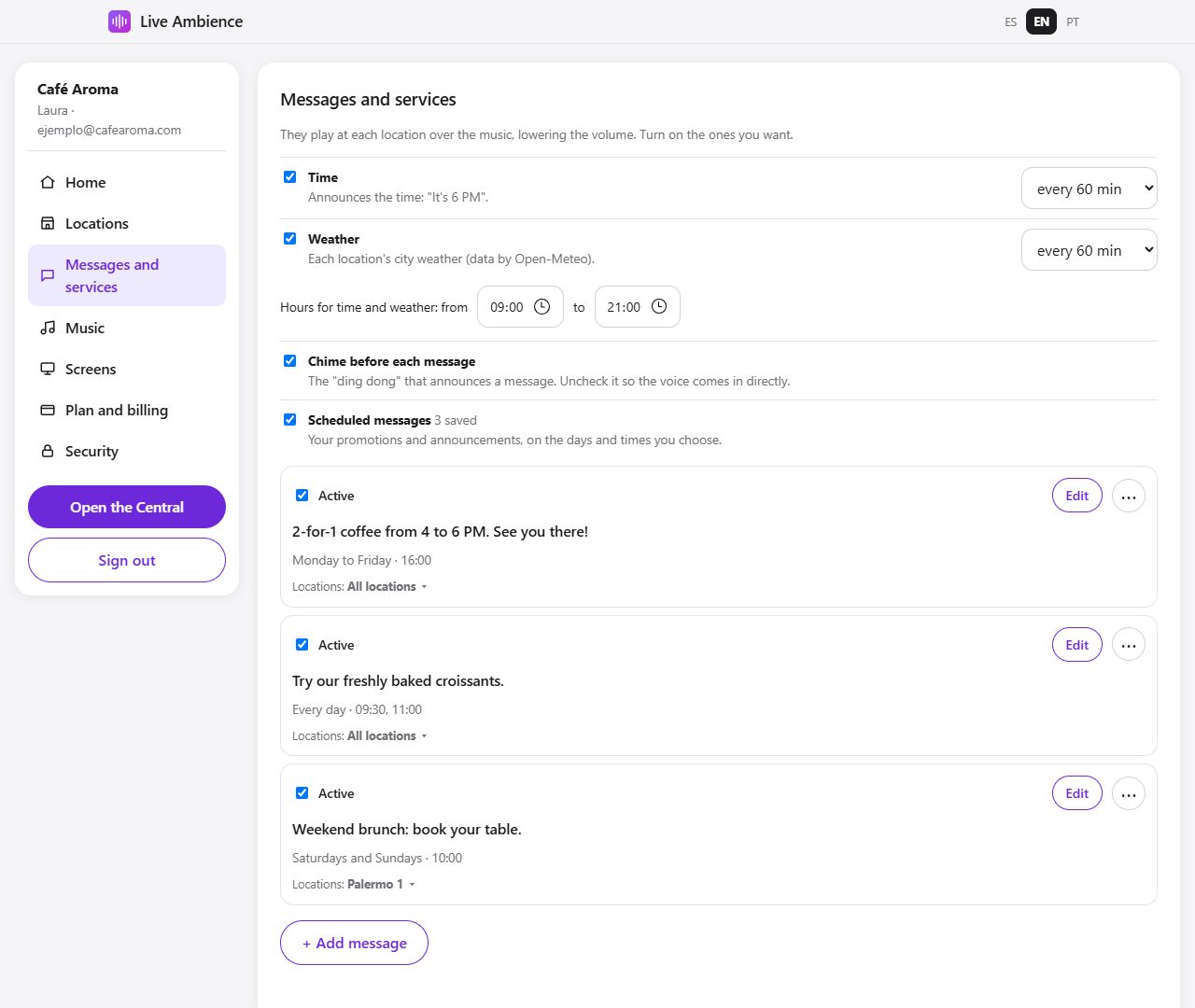
They play at each location over the music: first a chime (you can turn it off with the Chime before each message checkbox), the music lowers, the voice plays and the music comes back. Every change is saved instantly ("Saved" appears below) and reaches the players within a minute.
- Time: announces the time ("It's 6 PM") every 30, 60 or 120 minutes.
- Weather: the weather in each location's city, every 30, 60 or 120 minutes.
- Hours: time and weather play within the hours you choose (for example 09:00 to 21:00).
Scheduled messages
Your promotions and announcements, on the days and times you choose. The Loop plan allows 5, Live 25 and Premium unlimited.
- Tap + Add message.
- Type the text (for example "2-for-1 coffee from 4 to 6 PM"), the times separated by commas (10:00, 16:30) and check the days.
- Tap Save message.
Each saved message is a card with its text, days and times:
- Active / Paused: the checkbox pauses it without deleting it. Paused messages turn grey and don't play.
- Edit: change the text, times or days.
- Remove (in the ⋯ menu): deletes it, after confirming.
- Locations: below each message it says where it goes ("Locations: All locations"). Tap it to choose only some (for example, a promotion valid only Downtown). With none checked, it goes to all.
Add messages at least 2 minutes before their time.
Backup music
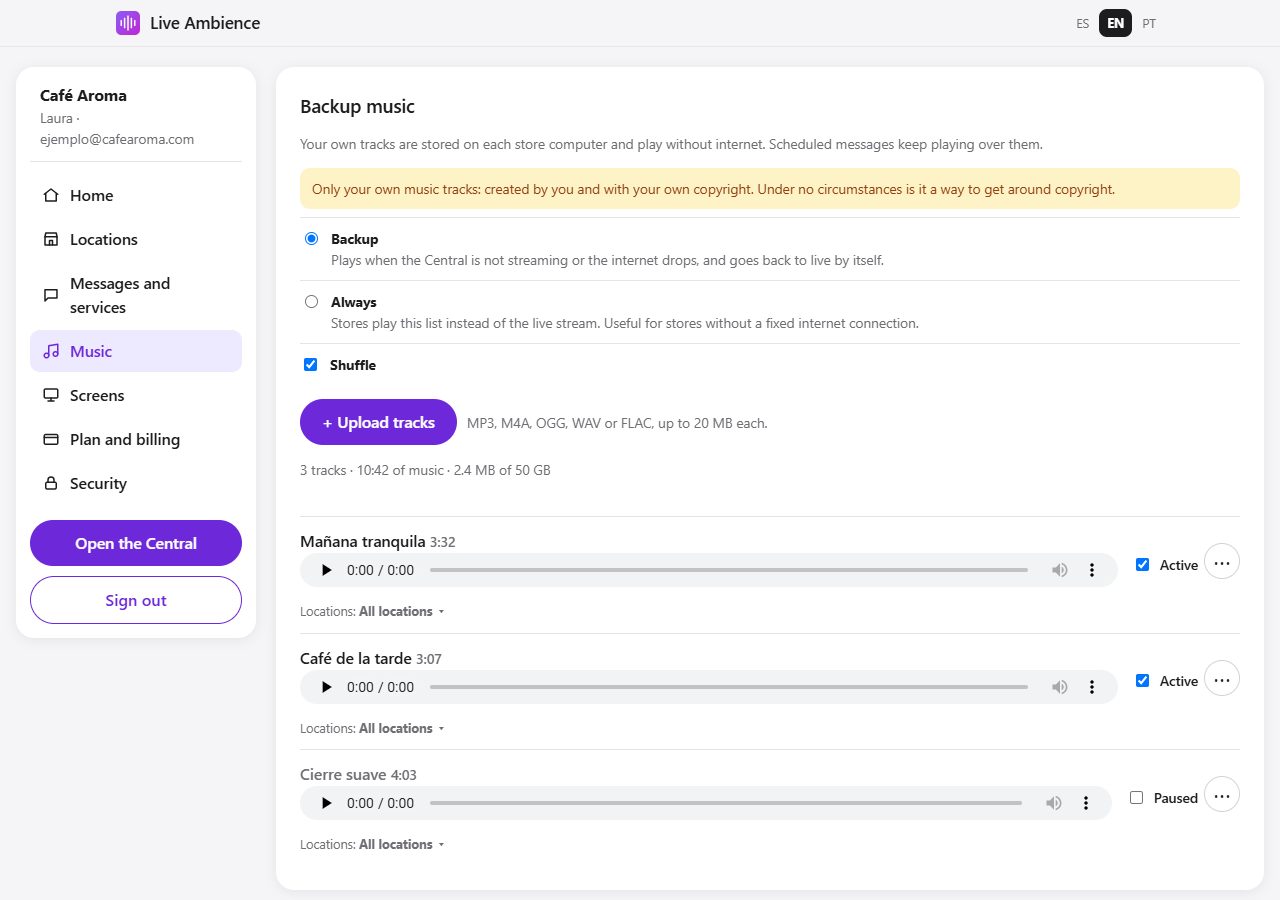
Your own tracks are stored on each store computer and play even without internet. Scheduled messages keep playing over them.
- Tap + Upload tracks and choose one or more (MP3, M4A, OGG, WAV or FLAC, up to 20 MB each).
- Choose the mode:
- Backup: plays when the Central is not streaming or the internet drops, and the store goes back to live by itself with a fade.
- Always: stores play this list instead of the live stream. Useful for stores without a fixed internet connection. On the Loop plan it is the only mode, because it does not include live music.
- Optionally check Shuffle.
For each track you can listen to it, pause it without deleting it (Active / Paused), and in its ⋯ menu move it up, down or delete it. Tapping "Locations" lets you choose where it goes. Below the buttons you see how much of your plan's space you use (Loop 2 GB, Live 10 GB, Premium 50 GB).
Each player downloads the tracks as soon as it connects and stores them on its computer. A new track takes a minute to arrive plus the download time. If the store computer starts without internet, it still plays what it had stored.
Only your own music tracks, created by you and with your own copyright. Under no circumstances is it a way to get around copyright.
Screens
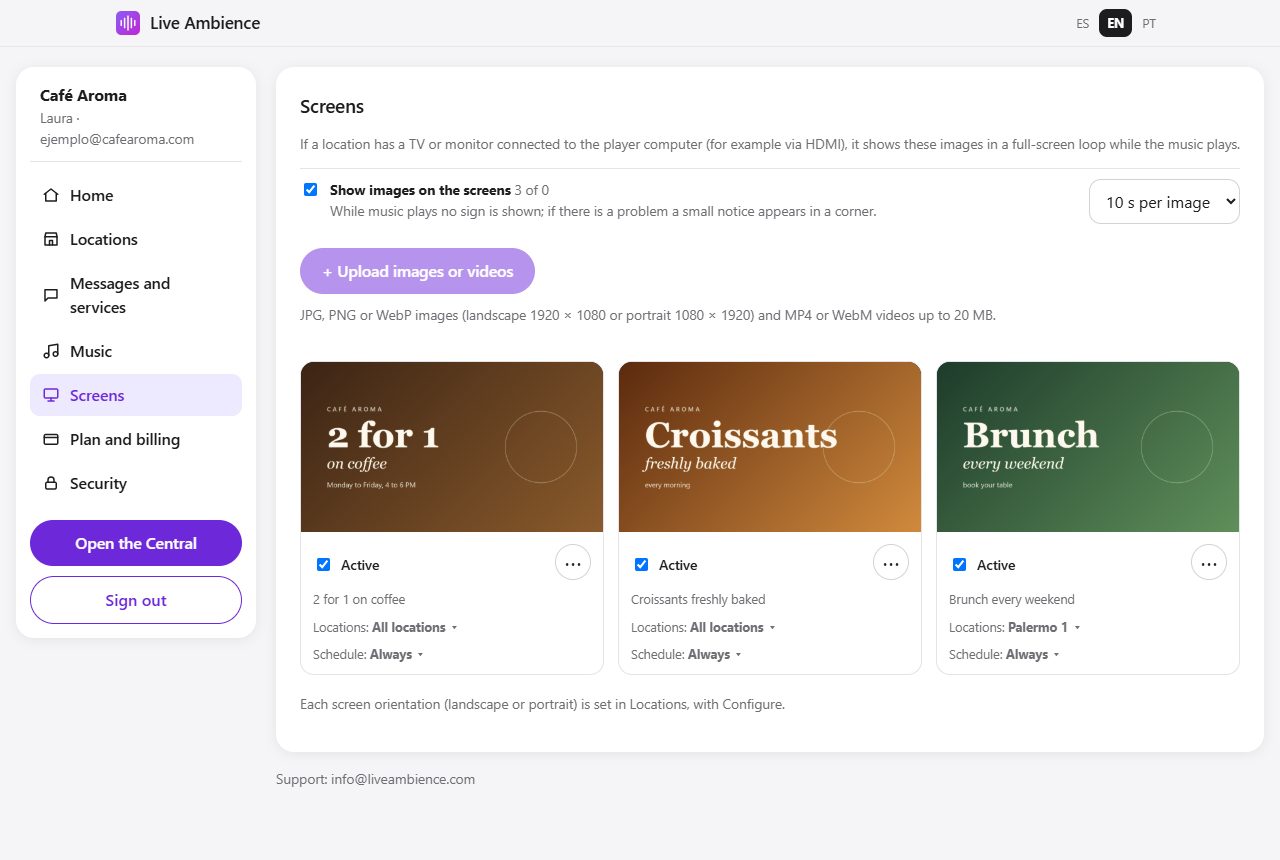
The images and videos that loop full screen on the store TVs while the music plays. Images are in every level; videos and choosing what each store, area or screen shows are part of Premium (on Loop and Live every screen shows the same). They are stored on each store computer: they show even without internet.
- Tap + Upload images or videos: JPG, PNG or WebP images (landscape 1920 × 1080 or portrait 1080 × 1920; they are resized automatically) and MP4 or WebM videos up to 20 MB. Videos show without sound and last as long as the video.
- Choose how many seconds each image lasts (5 to 60).
- Keep Show images on the screens checked.
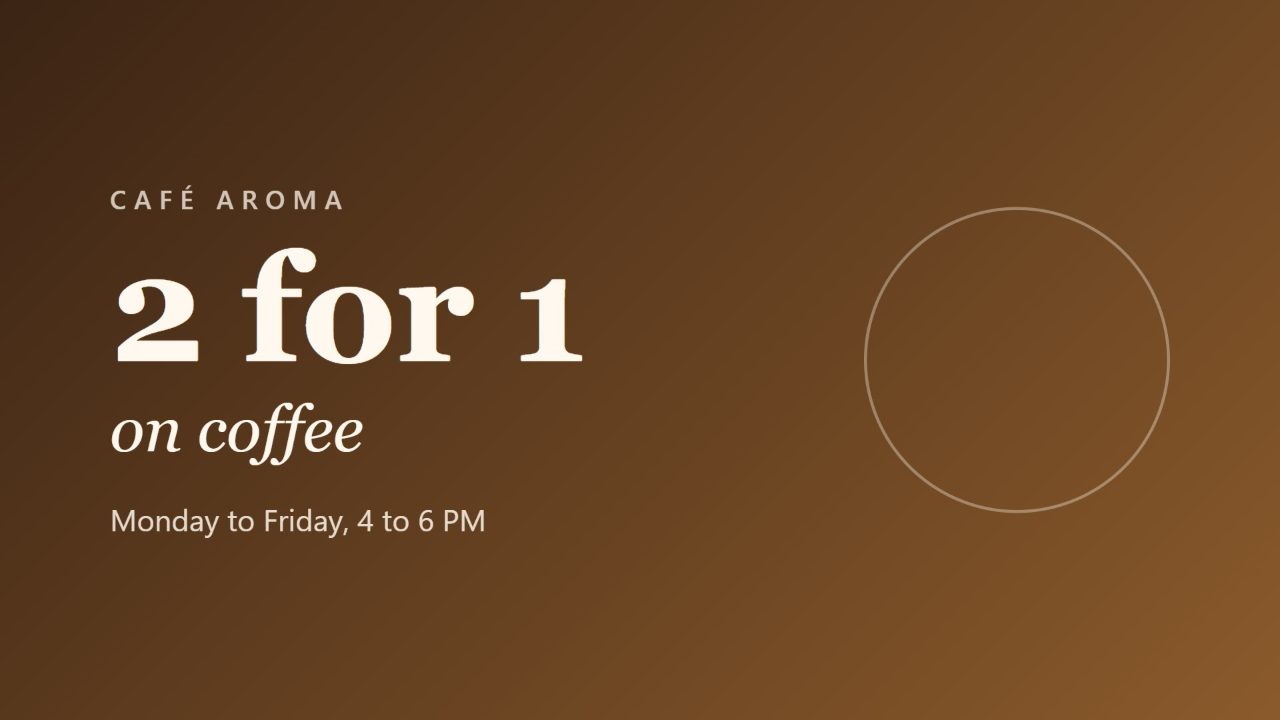
For each one you see the thumbnail and can:
- Active / Paused: take it out of the loop without deleting it.
- Locations: tap the "Locations: All" line to send it to only some screens, or to a whole store with All of Downtown.
- Schedule: the days and time range it shows (for example, the breakfast menu Monday to Friday from 8 to 12). Outside the schedule it doesn't appear. Always removes the schedule.
- ⋯ (More options): Show earlier, Show later and Delete.
Each screen shows the photos of its orientation first (portrait on portrait TVs). While music plays no sign is shown; if there is a problem a small notice appears in a corner. The Loop plan allows 10 images, Live 30 and Premium unlimited (with videos).
Plan and billing
Level, stores and screens
- Levels: Loop (your own preloaded music), Live (adds live music from the Central) and Premium (adds videos and different content per store, area or screen). All three have the same account fee.
- Stores with music: each store has a player with sound (it can be connected to its TV). Additional screens: each extra TV, without sound.
- Moving up a level, adding stores or screens, or switching to yearly billing applies right away: before confirming, My account shows what Paddle charges today (the prorated part) and at renewal.
- Moving down a level or switching to monthly is scheduled for the renewal: until then you keep what you paid for, and you can undo it with Keep what I have.
- You cannot go below the players you have created. On courtesy accounts, support makes the changes.
Billing
Paddle charges monthly or yearly, as you chose (paying yearly, 30% off). From My account:
- Change payment method: opens Paddle to add another card.
- Cancel subscription: the service continues until the end of the paid period.
Paddle emails you the invoices. Within 14 days of the purchase or of each renewal you can request a full refund with the Cancellation button (at the bottom of every page).
Security and language
- Password: type the current and the new one (10 characters or more). When you change it we close your other open sessions and email you.
- Language: top right (ES, EN, PT). It is saved in your account and emails reach you in that language.
Emails we send you
- Sign-in code and welcome.
- Location offline for more than 2 hours.
- Payment declined, so you can update your card.
- Upcoming renewal (15 days before).
- Upcoming expiry, if you canceled or your account is a courtesy account (30, 15 and 3 days before).
If one of our emails lands in spam, mark it as "Not spam" and add no-reply@liveambience.com to your contacts.