 Live Ambience
 Quick start guide
Live Ambience plays the same music in all your locations: one computer at headquarters streams and each store plays it by itself. This guide takes you from purchase to your first location playing.
Permitted use. Live Ambience is a tool to distribute your own music tracks to your stores: created by you and with your own copyright. Under no circumstances is it a way to get around copyright, and Live Ambience is not responsible for any misuse of the tool.
Want to hear it first? Open https://liveambience.com/player/ and sign in with user demo and password demo2026.
1. Buy
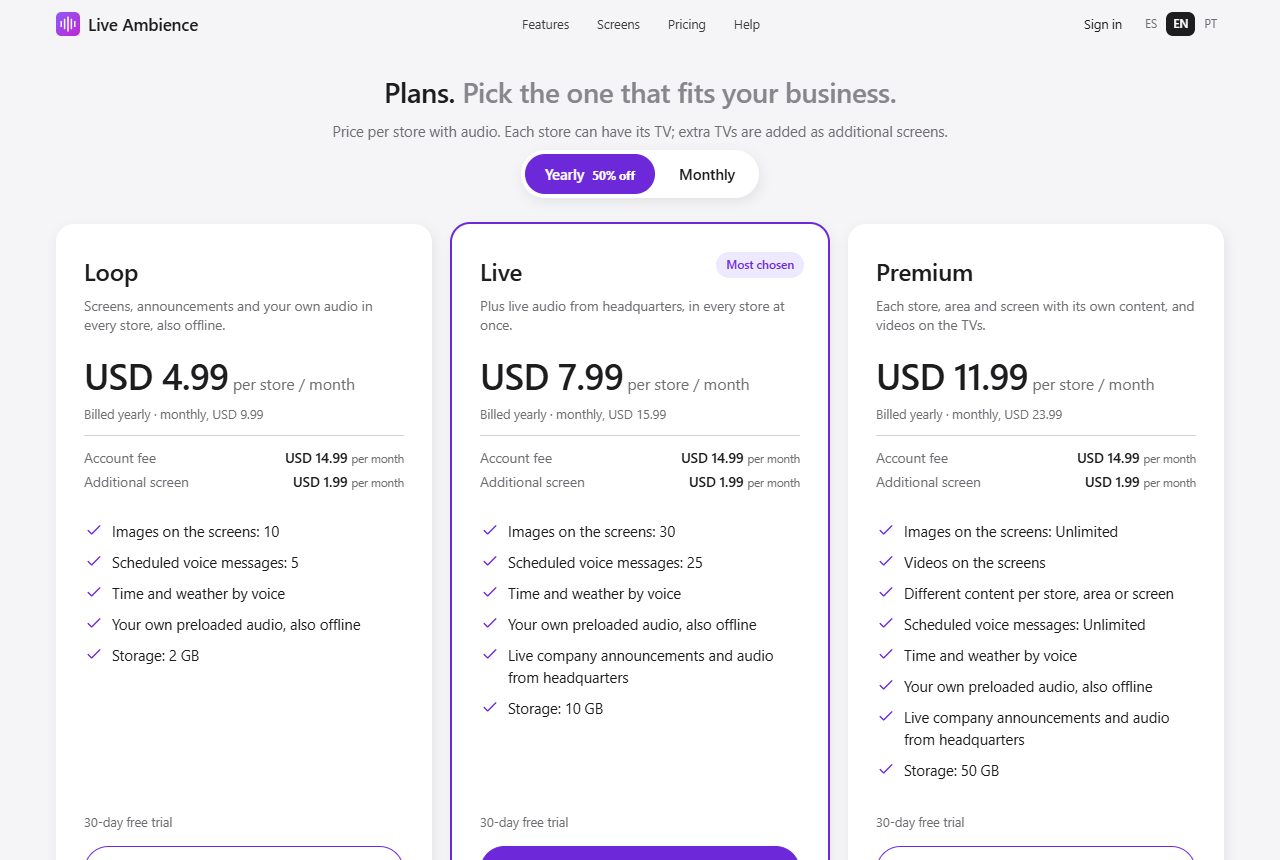
At https://liveambience.com pick the level (Loop, Live or Premium), how many stores with music and how many additional screens you need, and whether you pay monthly or yearly (paying yearly, 30% off). You pay through Paddle, by card, PayPal or other methods, or with digital dollars (USDT or USDC) from your wallet, with another 30% off. As soon as the payment is confirmed you get a welcome email.
2. Sign in to My account
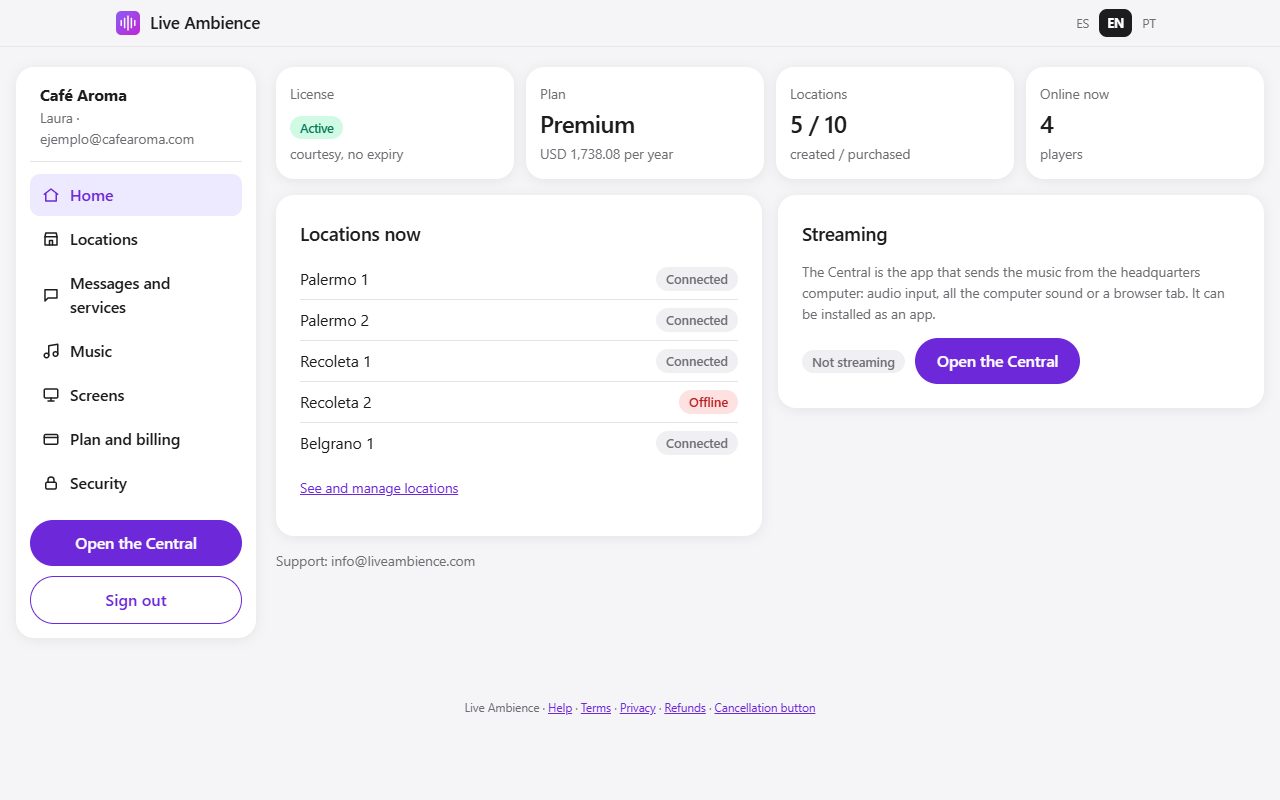
Go to https://liveambience.com/login with your email and the password you chose at checkout. The eye icon next to the password shows what you typed. We email you a 6-digit code: type it and you are in.
My account is a dashboard with a menu on the left: Home, Locations, Messages and services, Music, Screens, Plan and billing and Security.
3. Create your locations
In Locations, type the name (for example "Downtown") and tap Add location. Repeat for each store.
4. Get each store playing
- In the store's row tap Store USB stick. It downloads a single file that works for every screen in that store.
- Copy it to a USB stick. If the store is far away, in the store's ⋯ menu tap Copy link to send it and send it to whoever is there.
- On each computer in the store, plug in the stick, double-click the file and pick on the TV which screen it is.
Done: it plays with no user or password, stays installed on that computer and starts by itself every time it turns on. Unplug the stick and go on with the next one. Any Windows or Linux computer works.
5. Stream from the Central
The Central is the app that sends the music from the headquarters computer. Tap Open the Central in the My account menu, choose the source and tap Go live. Everything is in the Central manual.
6. Upload your backup music
In Music upload your own tracks. Each store keeps them on its computer and plays them by itself if the Central is not streaming or the internet drops. If a store has no fixed internet connection, choose the Always mode and it plays your list all day.
What next?
- Administrator manual: everything you can do in My account (messages, screens, plan).
- Central manual: streaming and pausing locations.
- Player setup manual: each store's computer in detail.
- Frequently asked questions.
- Videos: short tutorials for each task.
They are all at https://liveambience.com/ayuda, also as PDF.